Production line (grid and kanban)

Production line page shows the products in production, where record can be linked to Quote, Invoice and Purchase orders.

Grid layout

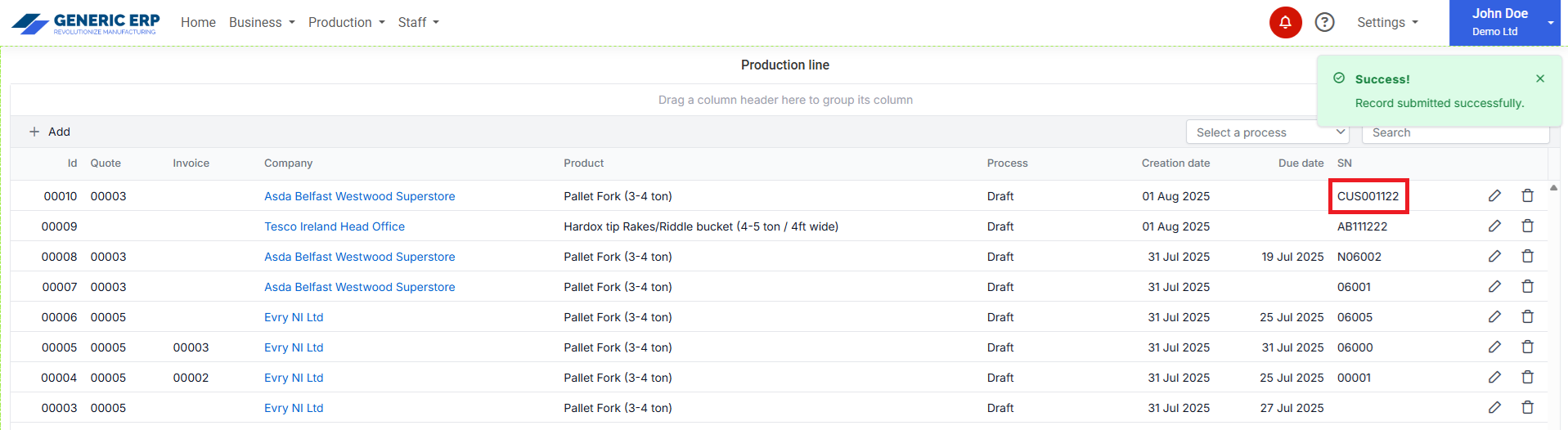
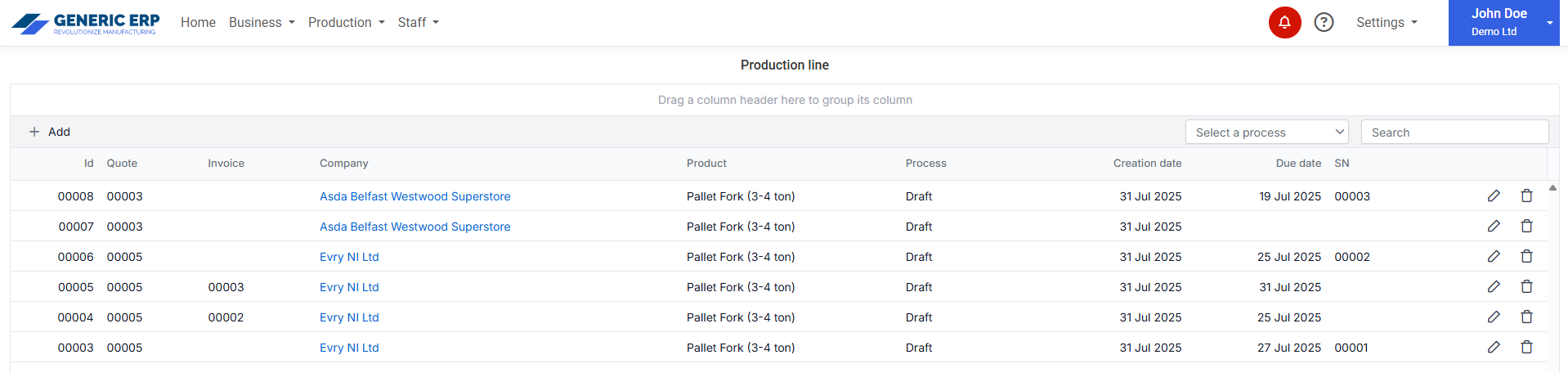
Production line table

Create / Update Production task

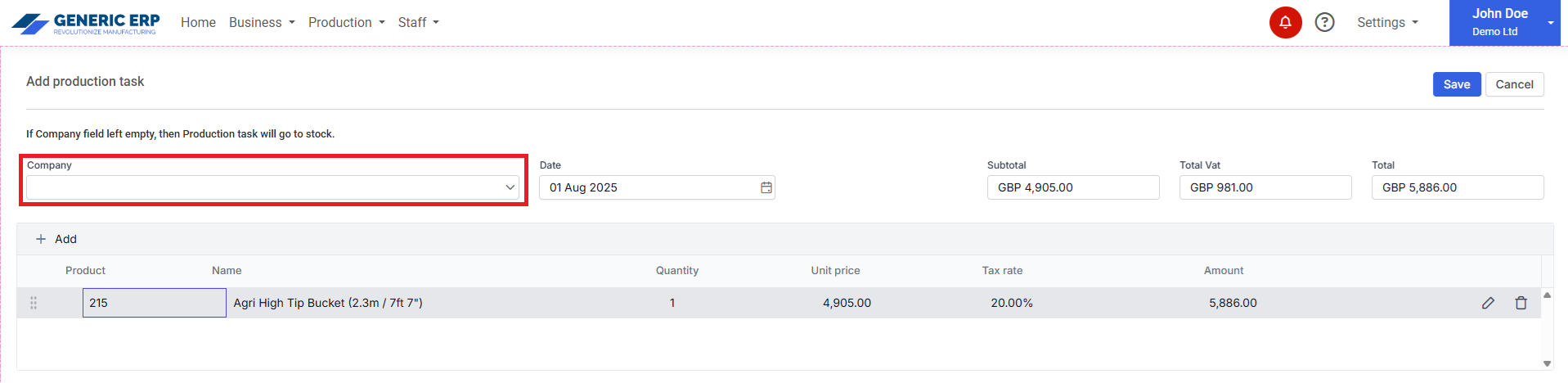
Production task can be created for a Company or to Stock.

Stock production task can be assigned to Company later.

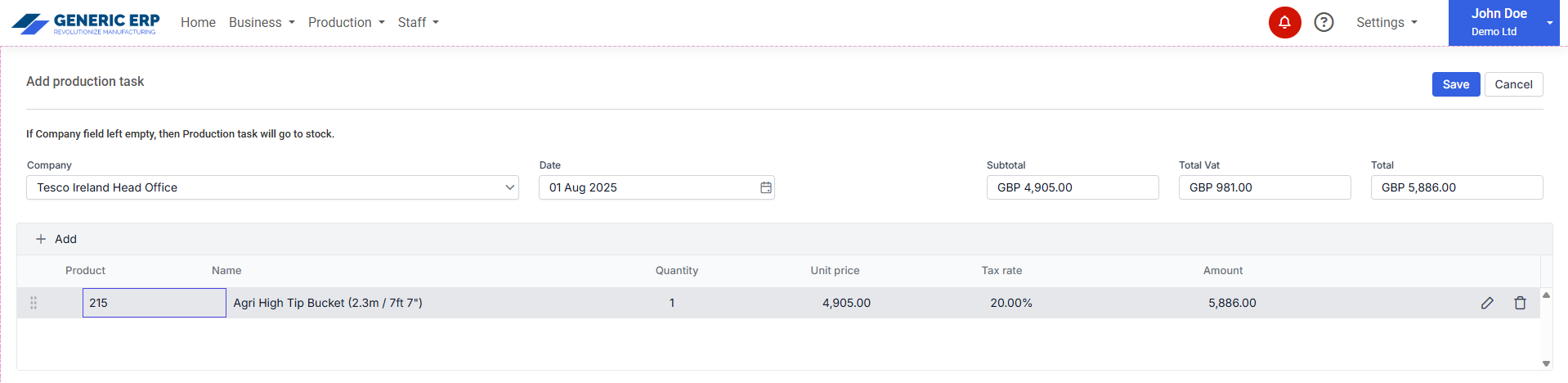
Production line create dialog

If Company is not selected – leaft empty -, then task is created to Stock.

Production line create dialog - to Stock
Production line task to Stock

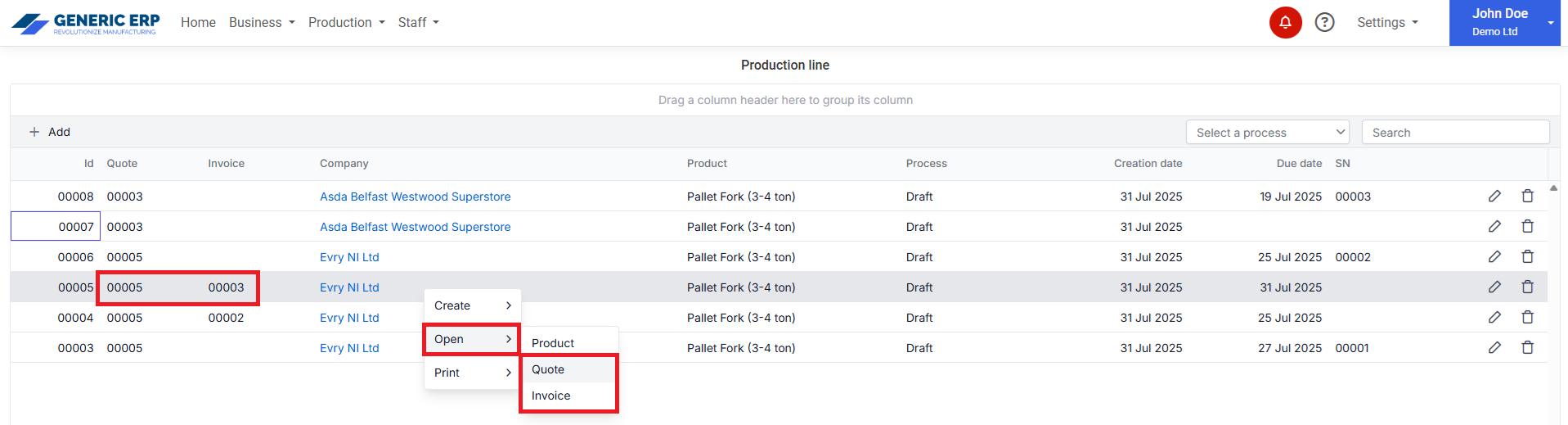
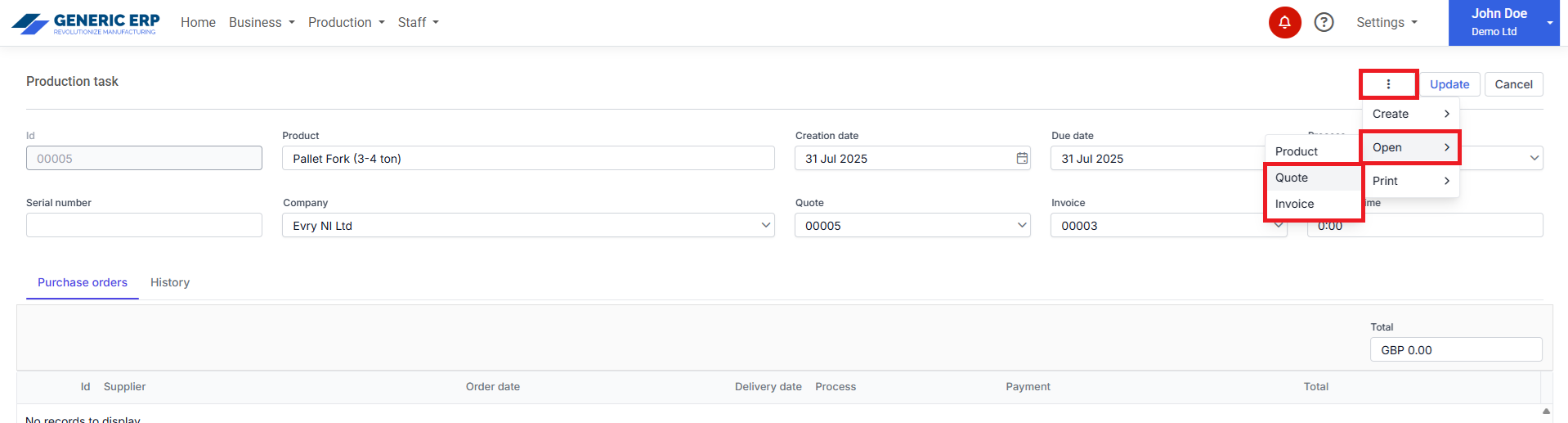
Where available, linked Quote and Invoice available through menu items at

  • Production line table
Open Quote / Invoice context menu
  • Production editor page
Open Quote / Invoice drop down button

Note: Quote / Invoice creation started from Production line task can be modified, but if selected Production Product is being deleted, then Quote / Invoice won’t be linked to the Production task.

Purchase order creation from Production behaves the same. If preselected Production changed or deleted, then Purchase order won’t be linked to the previously selected Production task.
Create / Set custom / Delete Serial number

Serial number can be Generated or Custom (manually entered – must be unique)

1. Generate automatic serial number


Serial number can be generated as number of a sequence. (Starting from 00001 or can be set at Settings > Business settings > Properties section. E.g. you have a serial number 10000 and want to use 10001 as the first one in Generic ERP, then you have to set Next Serial number as 10001.

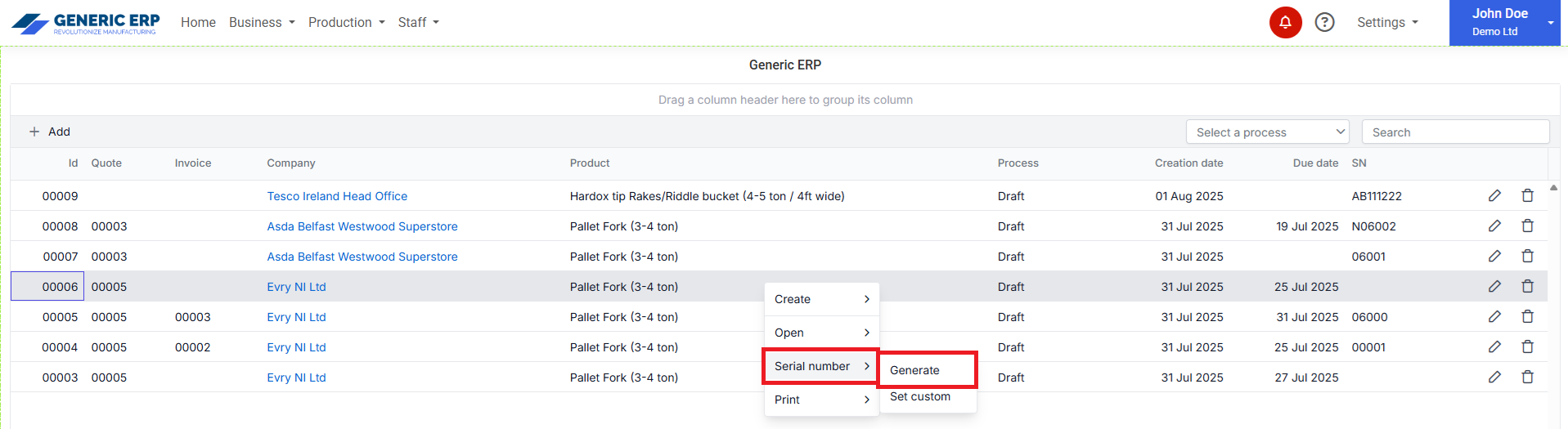
When hit Serial number > Generate menu, then it will create serial number 10001

Generate Serial number - Context menu
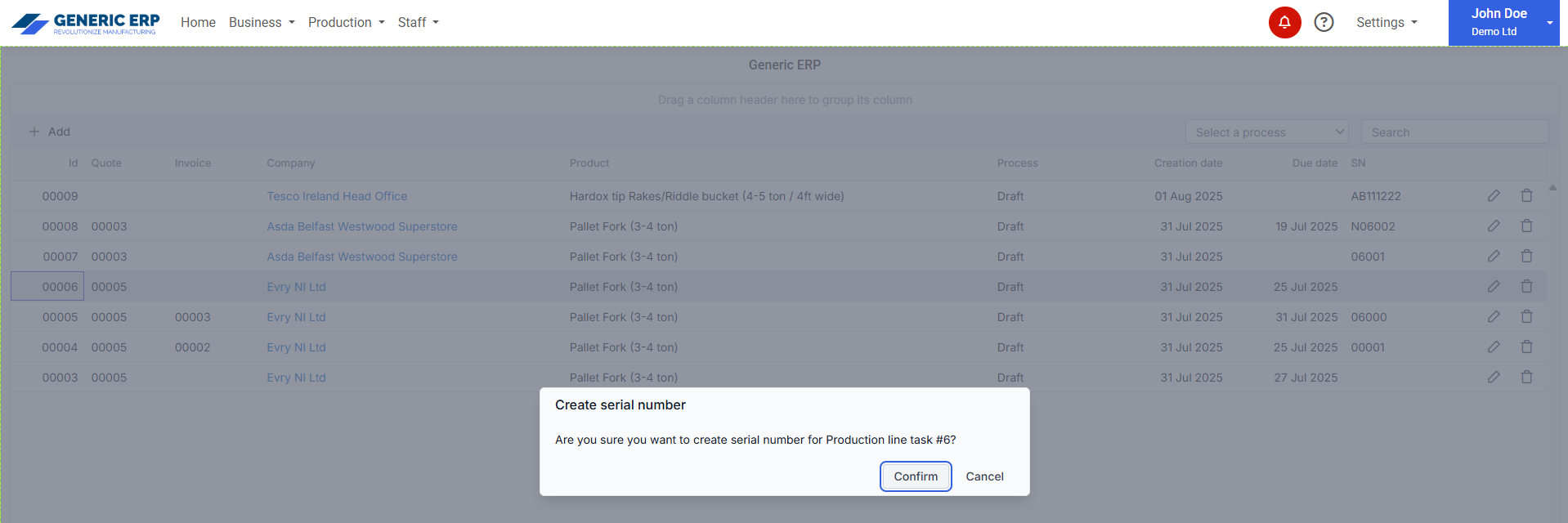
Generate Serial number - Confirmation dialog
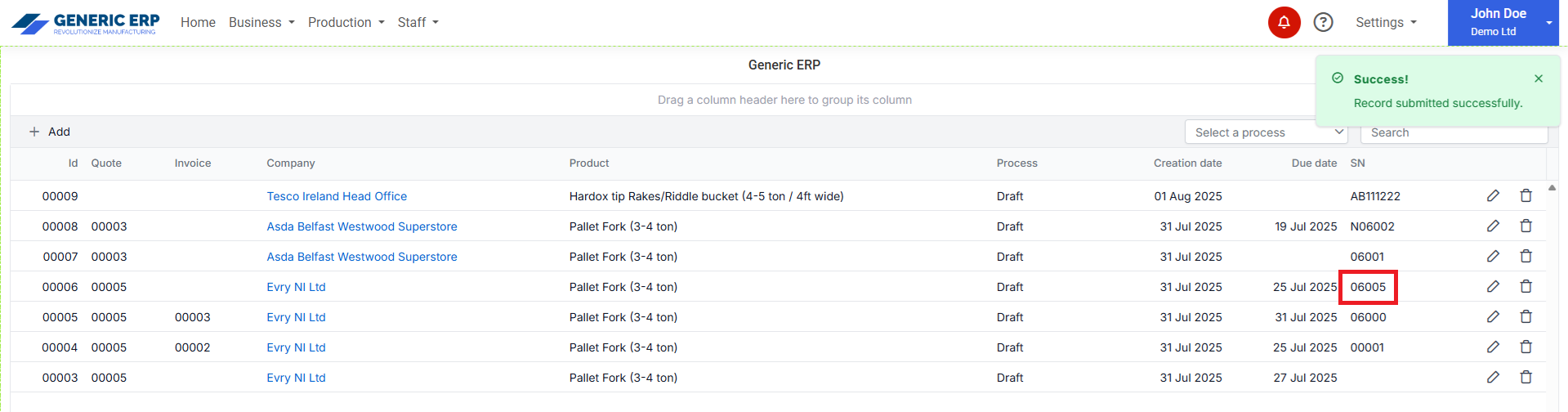
Generate Serial number - Serial number generated
2. Set custom serial number


Custom Serial number can be any format up to 30 characters.

It can Create new or Update previously linked Serial number.

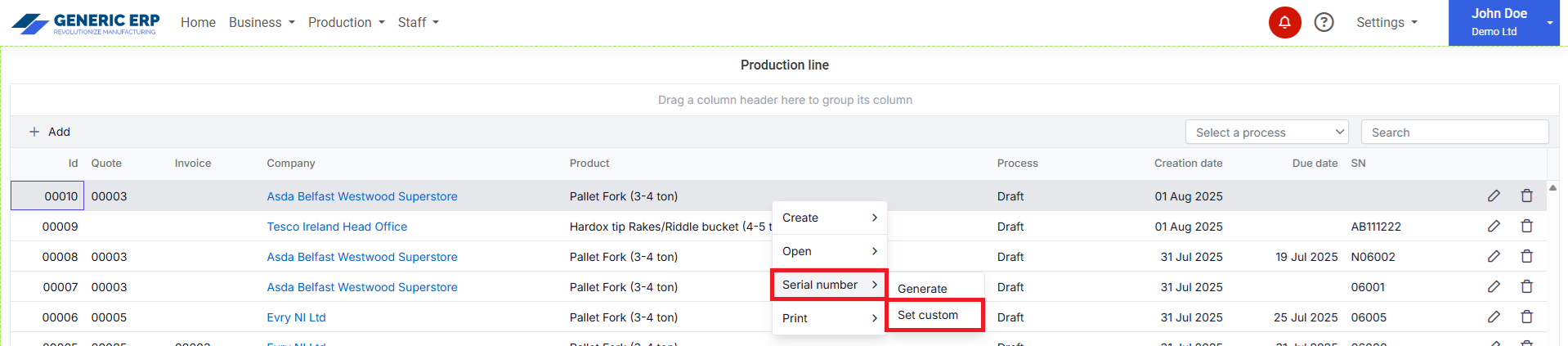
Set Custom Serial number - Context menu
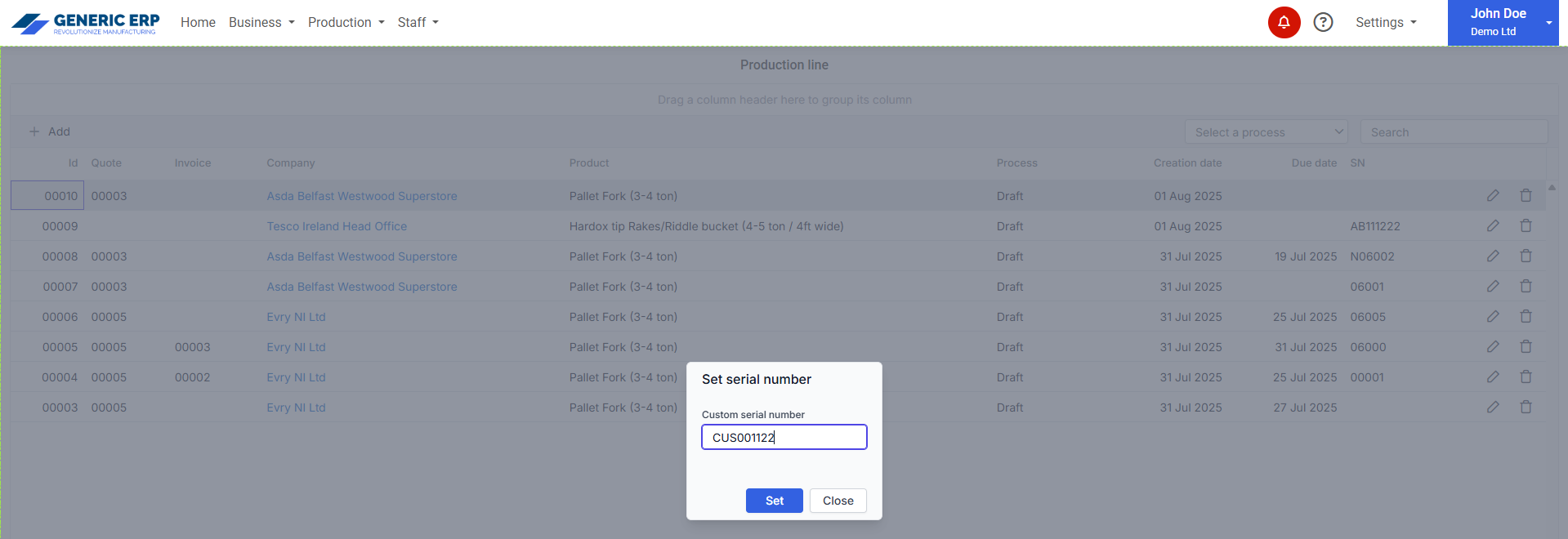
Set Custom Serial number - Custom serial number dialog
Set Custom Serial number - Serial number linked to the record

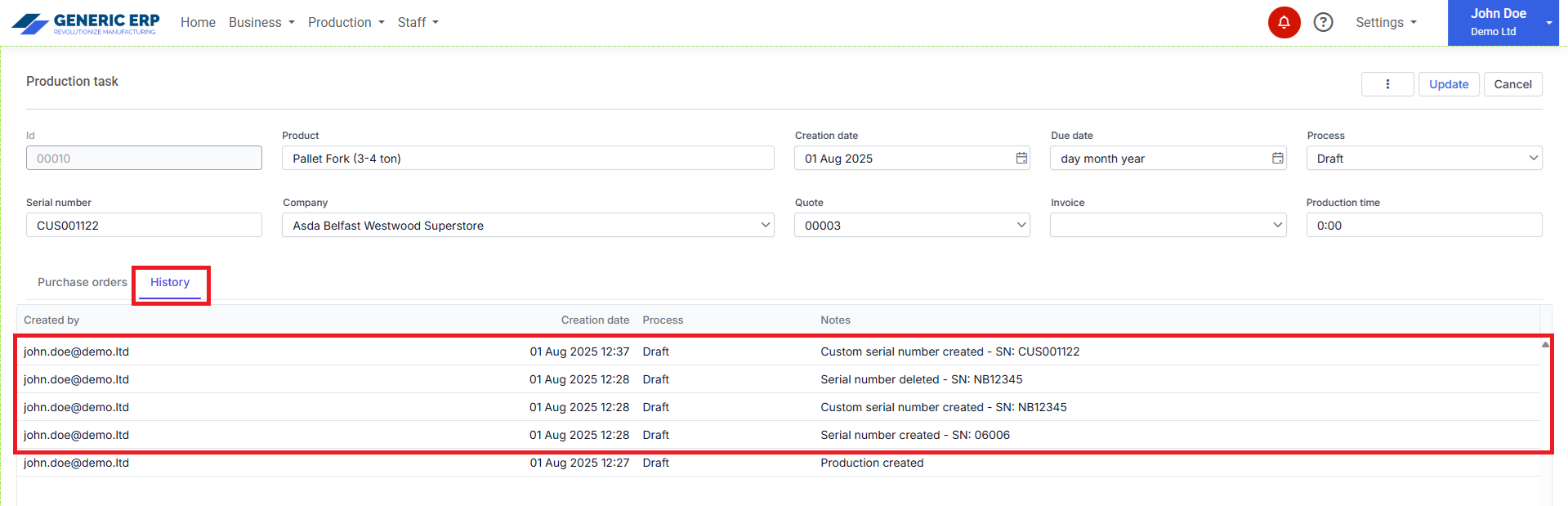
Tracking is available for Serial numbers at the Production editor page > History section.

Serial number tracking / history

Kanban layout

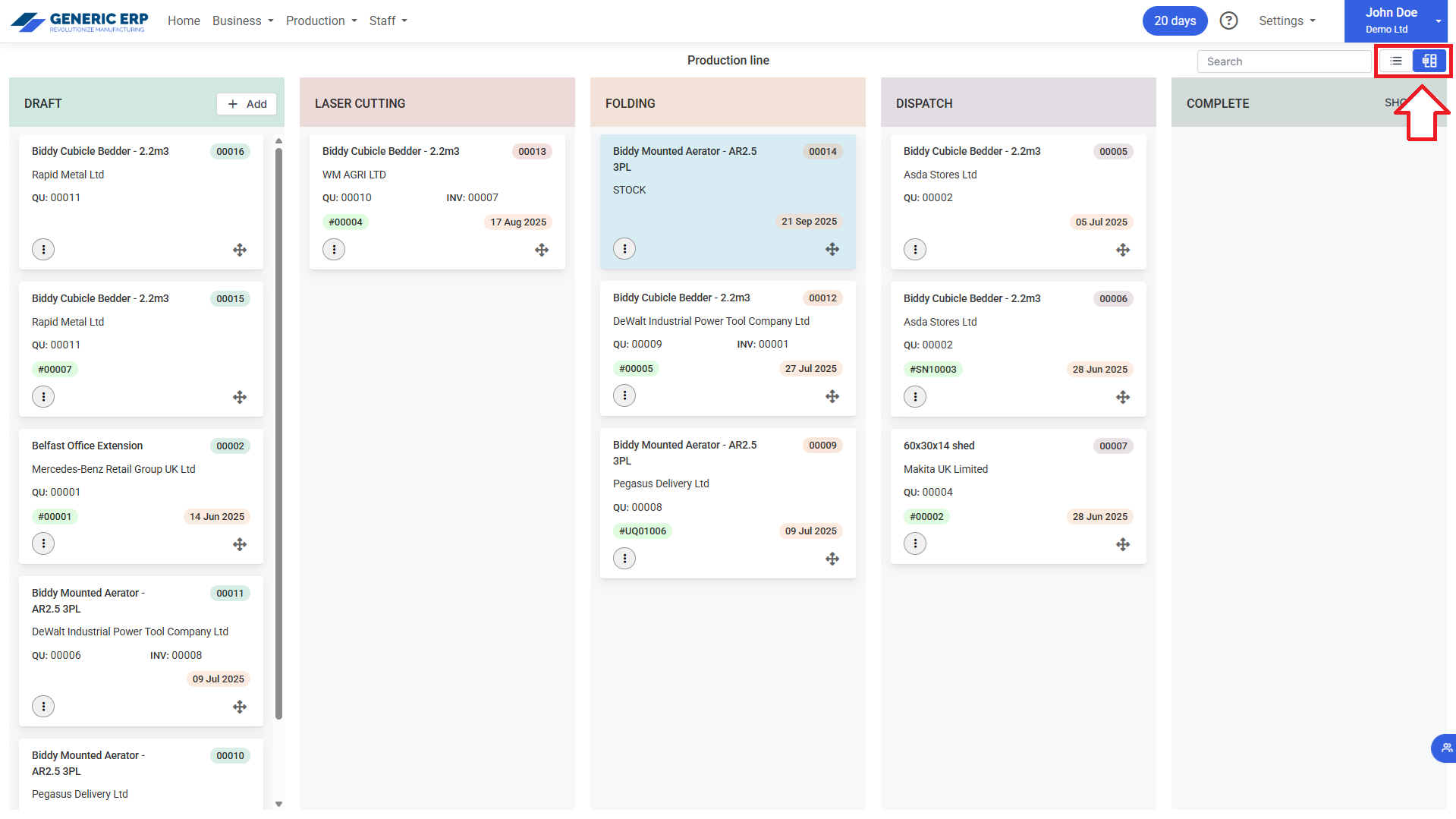
Layout can be changed hitting required button at the top of the page (on the right)

Production layout selector

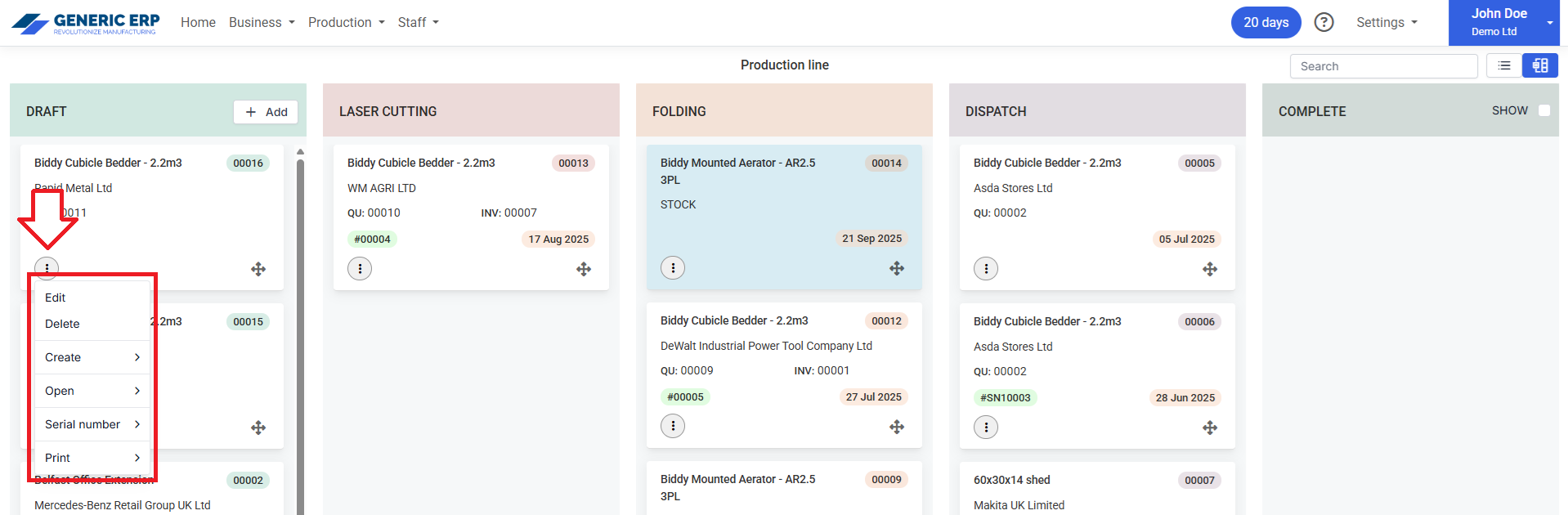
Context menu is available on the kanban card, hitting the three dot icon button.

Kanban context menu

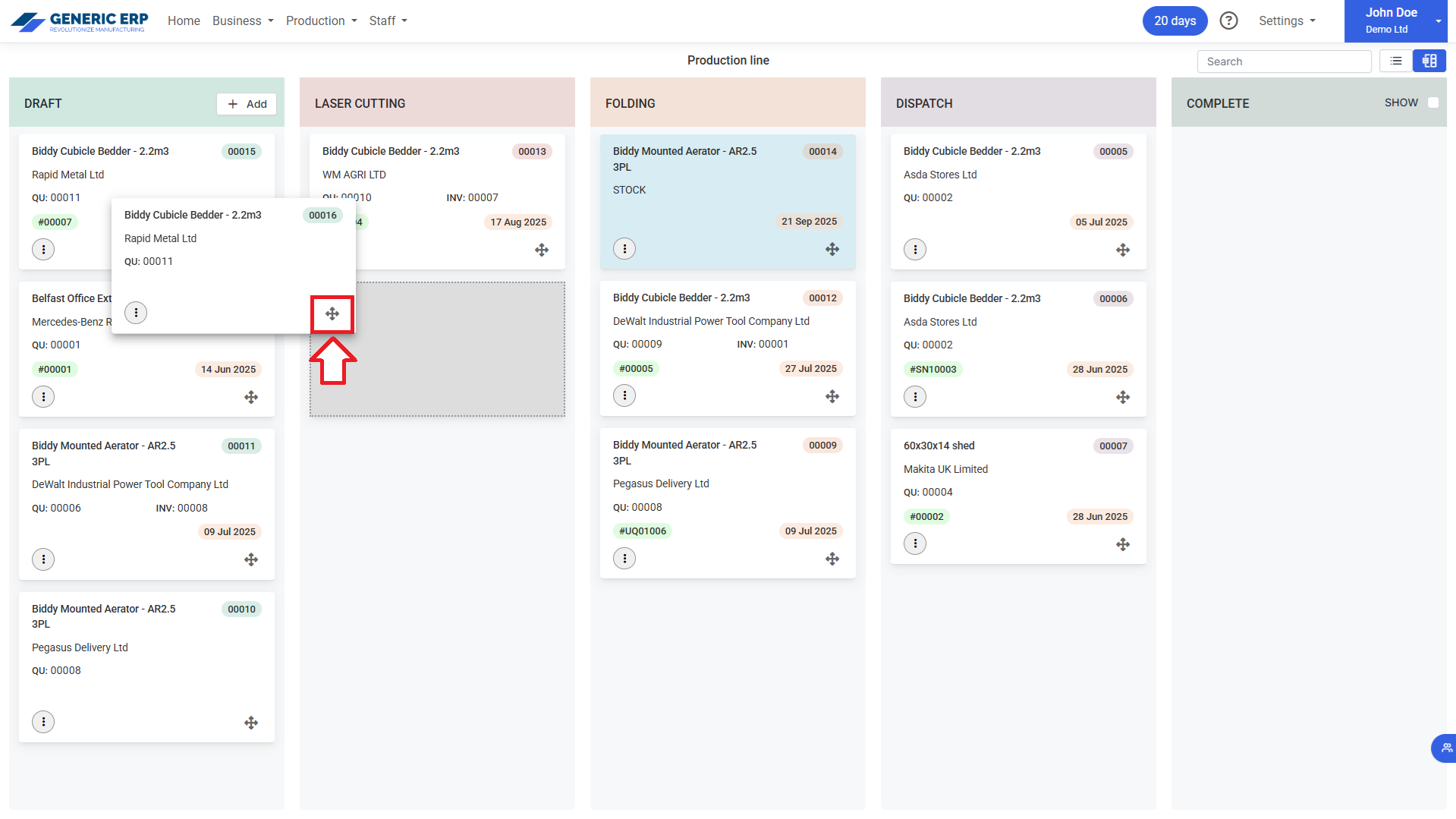
Kanban layout allows to change Production process through drag and drop. Cross symbol indicates the grab point on the card.

Kanban card drag and drop feature

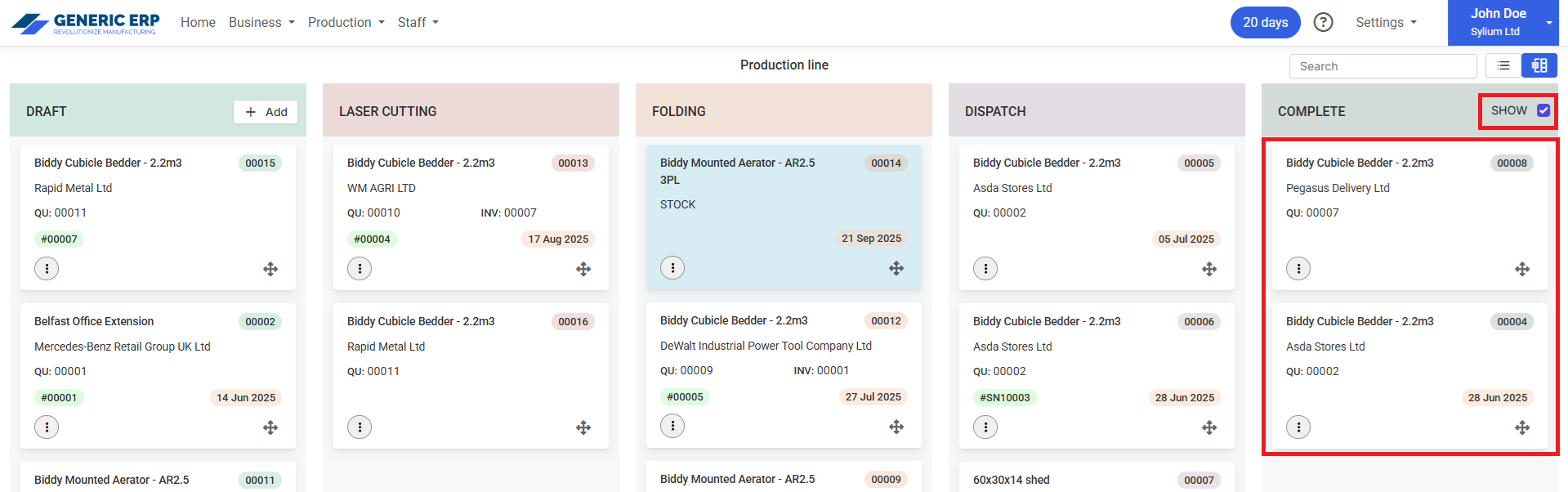
Last process cards are hidden as default, but they can be shown by checking SHOW checkbox.

Note: Last process name can be custom, but it always represents the final step, so those cards are hidden from other steps, unless SHOW checkbox is checked.

Last process cards